> For the complete documentation index, see [llms.txt](https://docs.developer.singpass.gov.sg/docs/llms.txt). Markdown versions of documentation pages are available by appending `.md` to page URLs; this page is available as [Markdown](https://docs.developer.singpass.gov.sg/docs/singpass-developer-docs/sign-with-singpass/for-relying-parties/onboard.md).
# How to Onboard our API
This information is for onboarding onto Sign V3. Do note that we are no longer supporting new requests to onboard onto Sign V1.
{% hint style="success" %}
**Onboarding for Sign V3 is open.** Please follow the steps below to onboard via the Singpass Developer Portal.
{% endhint %}
## Onboarding Steps
{% stepper %}
{% step %}
### Before you start (Prerequisites)
#### Get Access to Singpass Developer Portal (SDP)
* Sign with Singpass integrations are managed via SDP
* 👉 [How to get access to developer.singpass.gov.sg](https://docs.developer.singpass.gov.sg/docs/singpass-developer-portal-sdp/user-guide/obtaining-access-to-the-singpass-developer-portal-sdp)
#### Download Singpass Staging App ([guide here](https://docs.developer.singpass.gov.sg/docs/testing/testing-with-singpass-app))
* You need a Singpass Staging App to test that your application is successfully redirecting users to the Sign portal, and that they can sign with their Singpass app.
#### Gather information about your use case
* Description of use case and estimated transaction volume
* Sample of document(s) to be signed
{% endstep %}
{% step %}
### Design & UX Setup
#### Download the Sign with Singpass button
* The Sign button is available to download in 2 sizes here.
{% file src="/files/n5X7FvyMnJZp4ZJi5ZAk" %}
* If you want to customise the Sign button e.g. change the button font to your brand font, please consult the section [UX Guidelines](/docs/singpass-developer-docs/sign-with-singpass/for-relying-parties/ux-guidelines.md#implementing-the-sign-with-singpass-button) in our [UX Guidelines](/docs/singpass-developer-docs/sign-with-singpass/for-relying-parties/ux-guidelines.md)on how to implement the button in your application
#### Prepare your application details
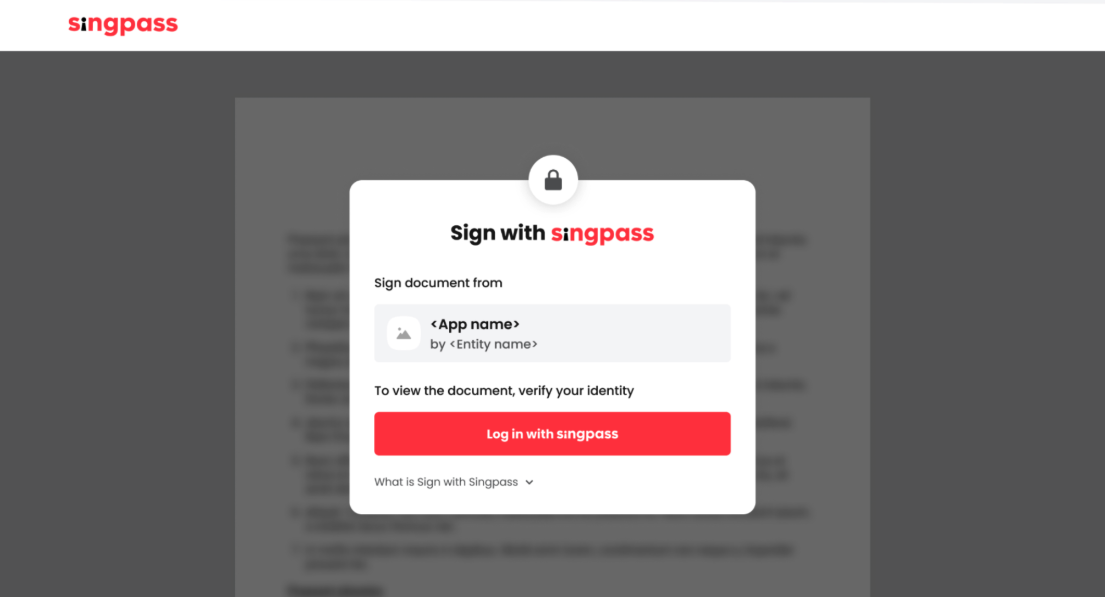
You can define the **App Name** and **Logo** that will be displayed to users on our Sign portal. Logos must meet the following requirements:
* PNG format
* Square (1:1 ratio) dimension
* Min size: 256px by 256px
* Max size: 512px by 512px in size.
*Note: **Entity Name** cannot be changed, it is based on the UEN associated with your Singpass Developer Portal account.*
#### Prepare your user journey
As part of your app creation in the **production** environment, you are required to submit a User Journey that illustrates how your digital service will use the Sign with Singpass API.
{% file src="/files/gkRvthnek88TEkjgEiDJ" %}
{% endstep %}
{% step %}
### Technical Integration
Set up the following resources in your own staging environment:
* [**Webhook URL**](/docs/singpass-developer-docs/sign-with-singpass/for-relying-parties/api-documentation/sign-v3/accept-success-signing-webhook.md)
* [**JWKS URL**](/docs/singpass-developer-docs/sign-with-singpass/for-relying-parties/api-documentation/sign-v3/jwks-specification.md)
* [**Redirect URL**](/docs/singpass-developer-docs/sign-with-singpass/for-relying-parties/api-documentation/sign-v3/redirect-from-sign-with-singpass.md)
{% endstep %}
{% step %}
### Request for Staging access
1. Log onto [Singpass Developer Portal](https://developer.singpass.gov.sg)
2. Toggle to the **Staging Environment**
3. Click "**New App"** and select "Sign with Singpass"
4. Enter in the details you have prepared in Steps 1-3
If you encounter any issues, please submit a request at [partnersupport.singpass.gov.sg](http://partnersupport.singpass.gov.sg/).
{% endstep %}
{% step %}
### Test your staging integration
Once you have received access to the endpoints, we recommend performing these tasks:
* [ ] Check that you can [initiate a signing request](/docs/singpass-developer-docs/sign-with-singpass/for-relying-parties/api-documentation/sign-v3/initiate-sign-request.md)
* [ ] Complete a signing request (with your Staging Singpass app) and check that your application's webhook is successfully called
* [ ] Retrieve the signed document from the [webhook call](/docs/singpass-developer-docs/sign-with-singpass/for-relying-parties/api-documentation/sign-v3/accept-success-signing-webhook.md)
* [ ] Check that you can call the [get signing result endpoint](/docs/singpass-developer-docs/sign-with-singpass/for-relying-parties/api-documentation/sign-v3/get-signing-result.md)
* [ ] (Upon smooth integration) Take screenshots of your end-to-end flow to complete the user journey document
{% endstep %}
{% step %}
### Request for Production Access
Once your staging implementation is complete and you are ready to go live:
1. Log onto [Singpass Developer Portal](https://developer.singpass.gov.sg)
2. Ensure you have done the following:
1. Agreed to the Singpass Services Agreement ([instructions here](https://docs.developer.singpass.gov.sg/docs/singpass-developer-portal-sdp/user-guide/consent-to-singpass-service-agreement))
2. Updated your billing contact details ([instructions here](https://docs.developer.singpass.gov.sg/docs/singpass-developer-portal-sdp/user-guide/updating-billing-contact-information))
3. Toggle to the **Production Environment**
4. Click "**New App"** and select "Sign with Singpass"
5. Enter in the details you have prepared for your **production** application
6. Once your **production app has been approved**, you can start testing and using your integration.
{% hint style="warning" %}
⏳ Note: Production App approval may take up to 2 weeks. Please plan your rollout timeline accordingly.
{% endhint %}
{% endstep %}
{% endstepper %}
---
# Agent Instructions
This documentation is published with GitBook. GitBook is the documentation platform designed so that both humans and AI agents can read, navigate, and reason over technical content effectively. Learn more at gitbook.com.
## Querying This Documentation
If you need additional information that is not directly available in this page, you can query the documentation by asking a question.
Perform an HTTP GET request on the following URL with the `ask` and `goal` query parameters:
```
GET https://docs.developer.singpass.gov.sg/docs/singpass-developer-docs/sign-with-singpass/for-relying-parties/onboard.md?ask=&goal=
```
`ask` is the immediate question: it should be specific, self-contained, and written in natural language.
`goal` is what the user is ultimately trying to achieve, the reason they need the answer. Sharing it helps GitBook give you a better, more relevant answer. A goal is most helpful when it describes the outcome the user wants rather than restating the question. For example, with `ask=how do I create an API token`, a goal like `automate deployments from our CI pipeline` lets GitBook tailor the answer to that use case.
The response will contain a direct answer to the question and relevant excerpts and sources from the documentation.
Use this mechanism when the answer is not explicitly present in the current page, you need clarification or additional context, or you want to retrieve related documentation sections.